How it works
Zep is a memory service. Your Claude talks to it through a connector. Every person gets a personal graph only they can see, and the whole team shares one team graph.
Personal graph
- Created automatically the first time you sign in.
- Only you can read or write it.
- Preferences, how you like to work, your own notes and research.
Team graph (powerhouse-shared)
- Set up once by James.
- Everyone can read and write it.
- Decisions, deal and company facts, market/tech/sovereign intel, meeting outcomes.
Key idea: Zep doesn't listen to your chats. Claude does the remembering: it has tools to search and save, and it uses them when you ask ("remember this", "check what we decided"). Zep also ships an optional Zep Memory skill that makes Claude do this automatically — reading before it guesses and saving durable facts unprompted; James can add it later via the Claude organisation's plugin marketplace.
Set up the Zep project and add the connector to Claude
You do this once. It creates the Powerhouse Zep project, turns on the connector, creates the team graph, and adds the connector to your Claude organisation so everyone can connect.
- Create the Zep account
Go to app.getzep.com → Create account → sign up with Google, using your Powerhouse Google Workspace account. When asked, create a project called Powerhouse.
Use a Google Workspace account (a Google account on your company domain), not a personal Gmail. Zep uses that domain to decide who's allowed to sign in later. If Powerhouse doesn't have Google Workspace, tell Andrew before going further.
- Turn on the MCP Server and connect Google Workspace
In the left menu open MCP Server. Leave the three switches ON (Create users on first sign-in, Allow writes, Allow standalone graphs) and set Grant maximum lifetime to 30 days (the default is 24 hours — otherwise everyone gets asked to sign in again every day). Then click Connect Google Workspace and sign in with the same Google account. Zep will show your domain and the endpoint URL
https://api.getzep.com/mcp.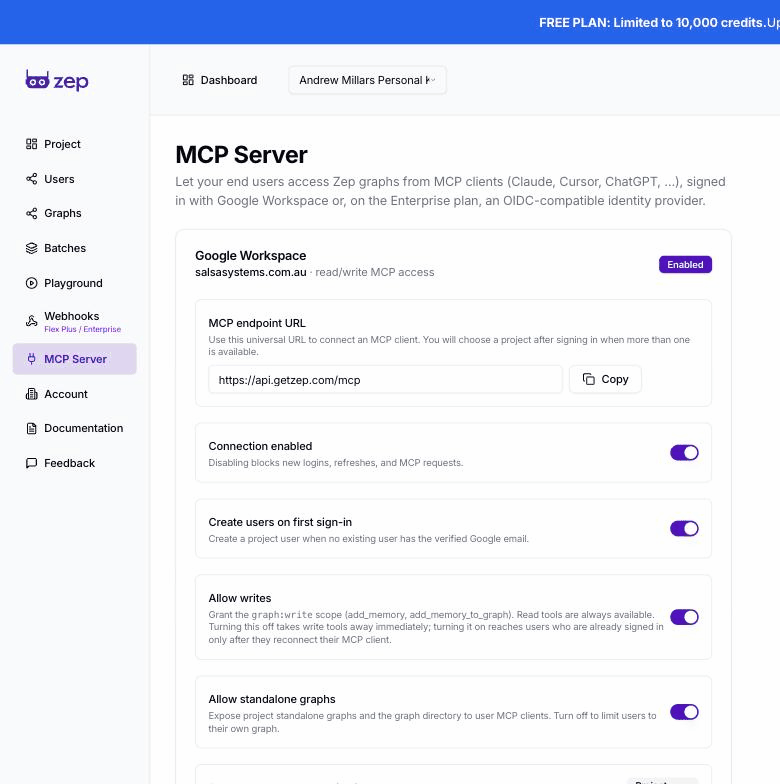
MCP Server page after connecting — your domain shows as Enabled, the endpoint URL appears, switches stay on. (Before connecting, the same page shows the three switches and a Connect Google Workspace button.) - Create the team graph
Left menu → Graphs → Create graph. Graph ID:
powerhouse-shared. Name: Powerhouse team brain. Save.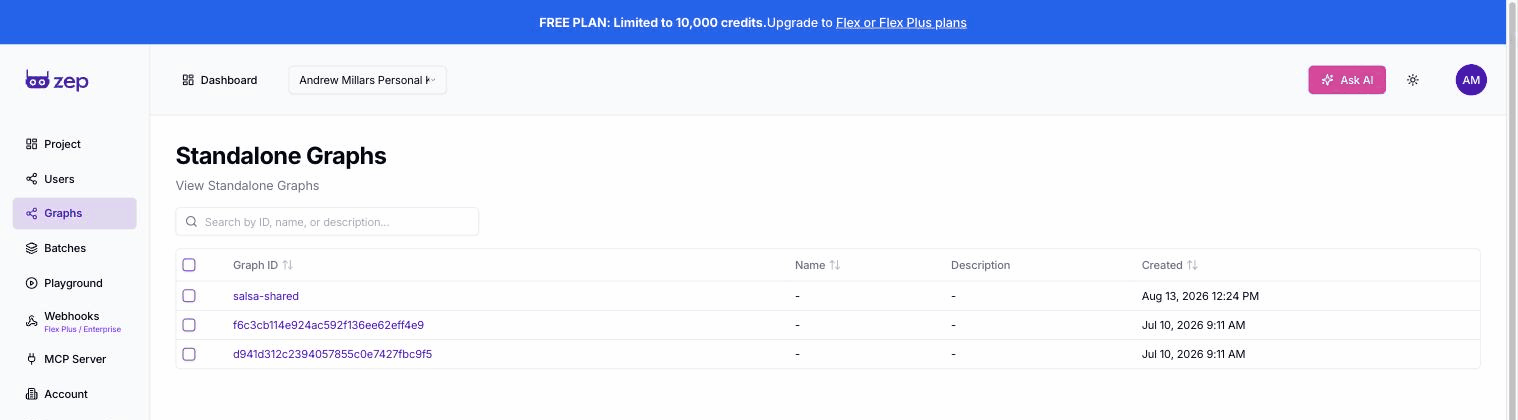
Graphs page — this is where the team graph lives - Add the connector to the Claude organisation
In claude.ai (as organisation Owner): Organisation settings → Connectors → Add → hover Custom → choose Web. Paste
https://api.getzep.com/mcp. Leave Advanced settings empty. Click Add.That's it — the connector now appears for every member under their own Connectors list, labelled Custom.
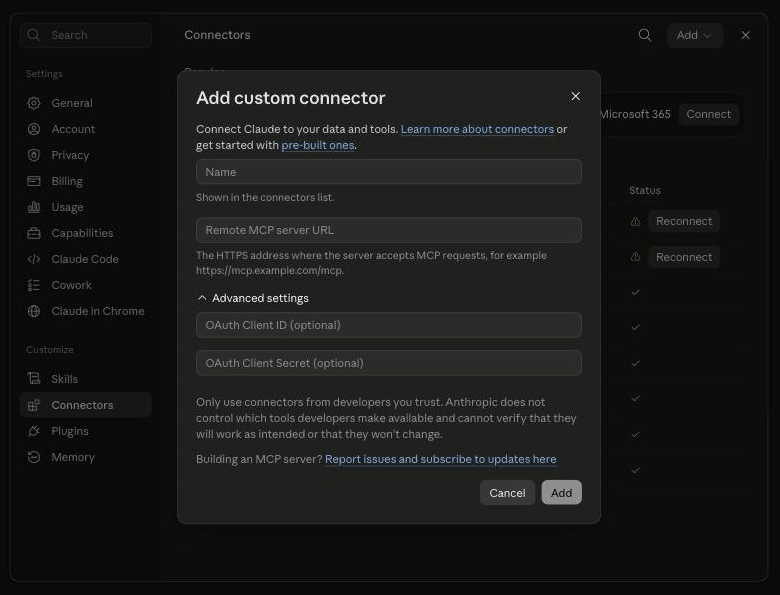
The Add custom connector dialog. Name: Zep memory. URL: https://api.getzep.com/mcp. Leave the OAuth fields empty. (Shown here from a personal account — the organisation-level dialog asks for the same two things.)Only an organisation Owner can do this step. If you're not the Owner of the Claude Enterprise account, forward this section to whoever is.
- Now connect your own Claude — follow the "Everyone" steps below.
Connect your Claude to Zep
James has already added the connector to the organisation. You just switch it on for yourself and sign in once.
- Open Connectors
In claude.ai: click your initials (bottom-left) → Settings → under Customize, click Connectors. Find Zep memory in the list (it may be labelled Custom) and click Connect.
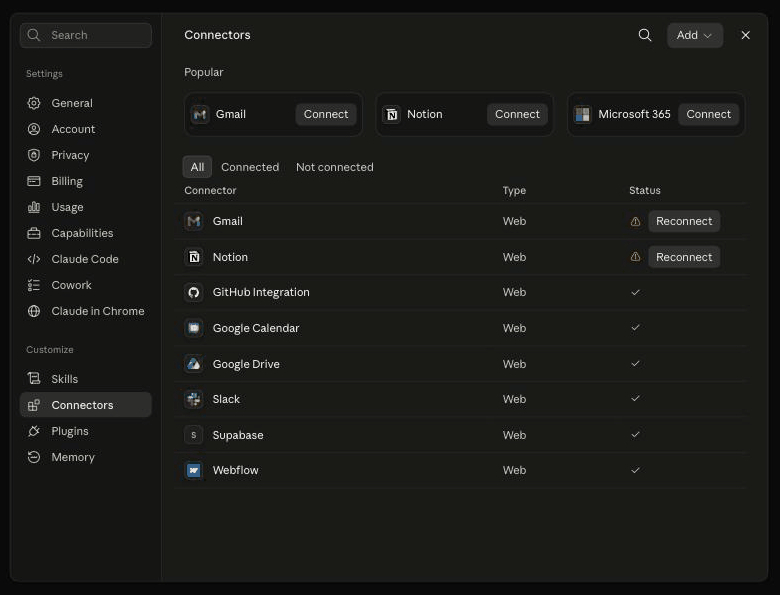
Settings → Customize → Connectors. Zep will appear in this list; click its Connect button. - Sign in
Enter your work email — it must be on the same Google Workspace domain James used in his setup (any other Google account is refused with "Zep cannot find your identity provider") → sign in with Google → if asked, choose the Powerhouse project → click Approve.
That's your personal graph done. There is no separate step: Zep creates your user and your private graph the first time you sign in, and every "my memory" tool points at it automatically.
- Start a NEW chat
The memory tools only appear in chats started after you connect. Open a new chat, click the + (or the tools icon) at the bottom of the message box → Connectors → make sure Zep is ticked.
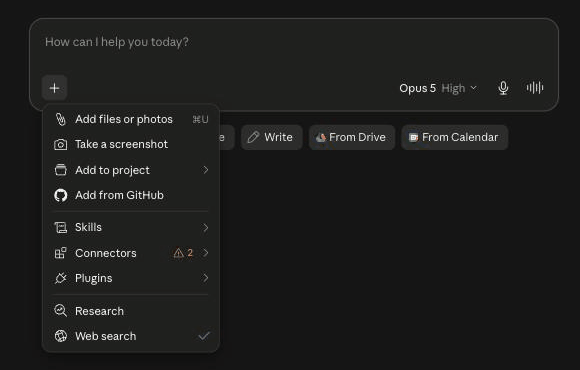
New chat → + → Connectors → make sure Zep is ticked - Test it — paste these one at a time:
Do you have access to the Zep memory tools? List them.
Save this to my Zep memory: I prefer short bullet-point summaries with a one-line TL;DR at the top. Then search my Zep memory and confirm it's there.
Search the powerhouse-shared graph for anything about [a topic]. If it's empty, say so.
Note the second test may take a couple of minutes to come back in search — Zep processes new memories in the background.
Claude Desktop app
Connectors belong to your Claude account, not the browser. Once you've connected in claude.ai, the desktop app has it too — open a new chat there and check + → Connectors. If it isn't listed, open the desktop app's Settings → Connectors and click Connect there.
Done. From now on Claude can remember things for you and check the team brain — say "remember this" or "check Zep" and it will.
Why there's no "set up your personal graph" step
Because signing in is the setup. Nobody creates anything by hand.
What happens when you click Connect
- You sign in with your Powerhouse Google account.
- Zep sees a verified identity it hasn't met before and, because James left Create users on first sign-in switched on, creates a Zep user for you on the spot.
- Every Zep user automatically gets their own graph. It starts empty and grows as Claude saves things.
Why Claude never mixes them up
- The personal memory tools (
add_memory,search_graph,get_user_summary) take no name or ID. Your sign-in fixes the target — they can only ever hit your graph. - The team graph is a separate, named graph (
powerhouse-shared) reached through separate tools. Claude has to name it to touch it. - Nobody else's Claude can reach your personal graph; there is no setting to share it.
So the checklist for a personal graph is: connect once → sign in → new chat. If "What do you know about me?" comes back with "nothing yet", it's working — it's just empty.
Add the memory skill so Claude remembers automatically
The connector gives Claude the memory tools. This small skill file gives it the habit: check Zep before guessing, save decisions and preferences without being told, and know when something belongs in the team graph vs your own.
- Download the skill
powerhouse-zep-memory.zip · or read it first: SKILL.md (plain text, ~1 page)
- Add it to your Claude
In claude.ai: Settings → Customize → Skills → add / upload a skill → choose the zip. Or, in the Claude desktop app, attach the SKILL.md to a chat and say: "Add this file as one of my skills."
- New chat, then test
I've just decided we'll pass on the Series A for [Company] because the traction numbers don't hold up. Also, I always want a one-line TL;DR at the top of anything you write me.
With the skill on, Claude should save the decision to the team graph and the TL;DR preference to your personal graph without you asking — and tell you it did.
Adapted from Zep's own zep-memory skill (Apache-2.0) with the Powerhouse team-graph routing, long-content handling and don't-save list built in. James can later push it to everyone at once via the Claude organisation's plugin marketplace instead.
Using it day to day
You mostly just talk to Claude. Below is what happens behind the scenes, and the few phrases worth learning.
Phrases that work
| Say | What Claude does |
|---|---|
| "Remember that …" / "Save this to my memory: …" | Writes to your personal graph. |
| "Save this to the team graph: …" / "Add to powerhouse-shared: …" | Writes to the team graph — everyone can find it. |
| "What do you know about me / how I like to work?" | Summarises your personal graph. |
| "Search the team graph for …" / "What has the team recorded about …?" | Searches powerhouse-shared. |
| "Check Zep before answering." | Forces a memory lookup first (useful if it seems to be guessing). |
Long content: articles, transcripts, reports, books
Claude can't watch a video or read a book by itself — give it the text (paste it, or attach the file/PDF). Then tell it explicitly to break it up and save it. Zep accepts about 10,000 characters per save, so Claude has to chunk anything longer. Two options:
Distil first (recommended)
Cheaper, cleaner to search. Use for most things.
Read the attached transcript. Pull out every distinct fact, decision, claim, name, number and date as one-sentence facts. Save them to the team graph in batches. Then tell me how many you saved.
Save it whole
When you'll want to query line-by-line detail later. Uses ~10× more credits.
Split the attached document into chunks of under 10,000 characters and save each chunk to the team graph, in order, with a one-line heading saying what it is.
Rule of thumb: a 6-hour course transcript saved whole ≈ 10% of the free monthly allowance in one go. Distilled, it's about a tenth of that.
What to save — and what not to
Zep is a shared, cloud-hosted memory. Treat the team graph like a company wiki that everyone can read, and treat your personal graph like your own notebook.
✅ Save
- Decisions and the reason — "We passed on X because Y" (team)
- Deal, company and people facts — who, what stage, what we learned (team)
- Market, tech and sovereign intel distilled from podcasts, reports, articles (team)
- Meeting outcomes and actions (team)
- Who knows what — "Ben ran the diligence on X" (team)
- Your preferences — formats, tone, how you like briefs (personal)
- Newsletter material for "Around the Corner" (team)
⛔ Don't save
- Passwords, API keys, bank details, ID numbers — ever
- Material non-public information on listed companies, or anything with insider-trading exposure
- Third-party confidential material where the NDA doesn't allow cloud processing
- Personal data beyond what the team genuinely needs
- Raw document dumps when a distilled version would do — it burns credits and clutters search
- Ephemeral stuff — today's to-do, a draft that'll change tomorrow
Personal vs team: if a colleague would ever need it, it belongs in the team graph. If it's about how you work, keep it personal. When in doubt, say which one you mean.
FAQ
I saved something and Claude can't find it a minute later.
Normal. Zep extracts and links facts in the background — a few minutes on the free tier. Ask again shortly.
Can the others see my personal memory?
No. Your personal graph is tied to your sign-in and only your Claude can reach it. The team graph is the only shared space.
Claude says it has no memory tools.
Start a new chat — tools don't appear in chats opened before you connected. Then check + → Connectors in the message box and make sure Zep is ticked. If it's still missing, go to Settings → Connectors and click Connect again.
Does Claude save everything I say?
No. It saves durable things — decisions, preferences, facts, procedures, corrections — and skips chit-chat and one-off questions. If you want something kept, say "remember this" and it will.
Claude says Zep needs to reconnect / asks me to sign in again.
Normal — access expires after the grant lifetime James set (up to 30 days). Settings → Customize → Connectors → Connect and sign in again.
Can I delete something?
Yes. Ask James to remove it in the Zep dashboard. (Note for James: deleting a user doesn't remove their access — they're recreated on next sign-in. To off-board someone, disable the connection or remove them from Google Workspace.) Zep also tracks when a fact stopped being true, so a corrected fact automatically supersedes the old one when you tell Claude the update.
Where does the data live? Is it safe?
Hosted by Zep (Zep Software, Inc.). Sign-in is through your Google account — no passwords are shared with Zep. Compliance and security details are on Zep's Trust Center. Follow the "Don't save" list above regardless.
What does it cost?
James: the connector also uses per-account MCP seats, and Zep doesn't publish the free plan's seat count — check the MCP Server page shows enough seats for the team; if a partner gets an error on Connect after others succeeded, seats are exhausted. The free plan includes 10,000 credits a month (roughly 3.5 MB of text — about 30 hour-long transcripts, or thousands of individual facts). If the team outgrows it, Flex is about USD $104/month billed annually. Pricing.
Does it work in the Claude desktop app? On my phone?
Desktop: yes — same account, same connectors. Mobile: connectors are managed on web/desktop; check with Andrew if you need it on the go.
Something else isn't working.
Message Andrew with a screenshot of what you see.
Learn more
- ▶️ Zep Quickstart: Agent Memory + Automated Context Assembly — 10-minute video, the best plain-English intro.
- 📖 How Zep works: a visual guide to knowledge graphs — why it's a graph, not a pile of notes.
- 📰 Zep blog
- 🔧 Zep docs — Memory MCP Server (technical reference for the connector)
- 🧠 Powerhouse Zep memory skill (zip) · SKILL.md
- 🔧 Claude help — custom connectors